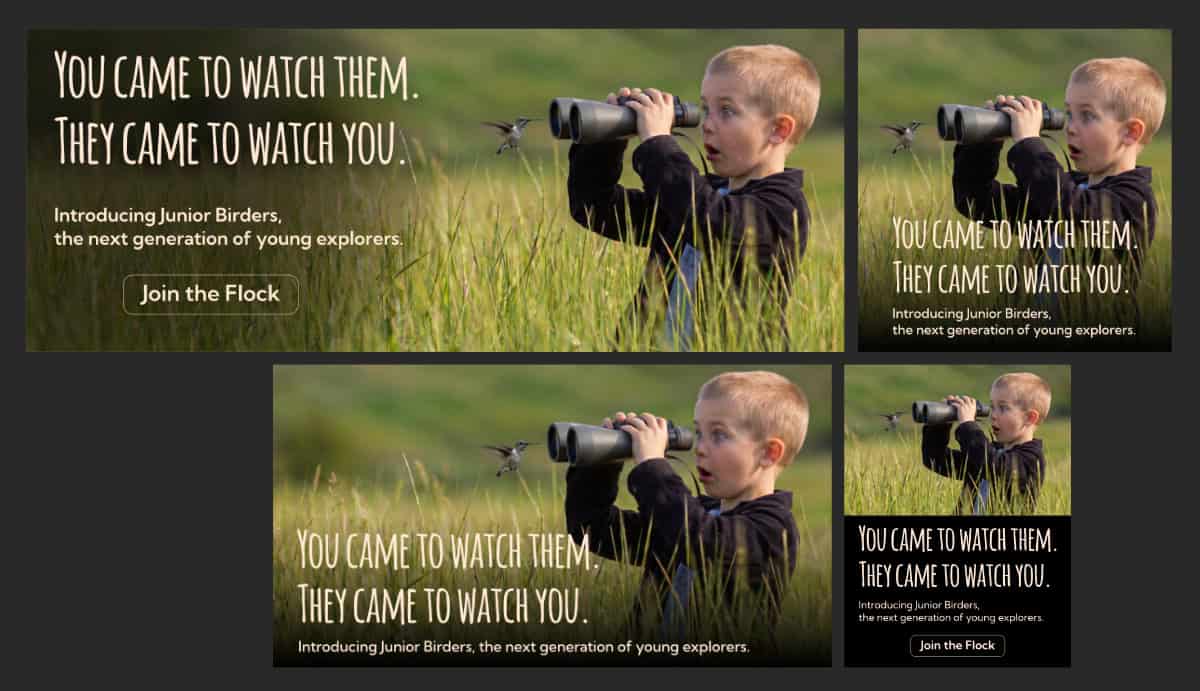
A kid looking through binoculars is a nice photo. A hummingbird hovering in front of the lens, staring back at the kid, that’s a campaign.
That second image doesn’t exist, though. It was never photographed. It can’t be. The timing, the scale, the look on the kid’s face. You’d need a hummingbird that takes direction and a kid who doesn’t flinch. Good luck booking that shoot.
So you build it.
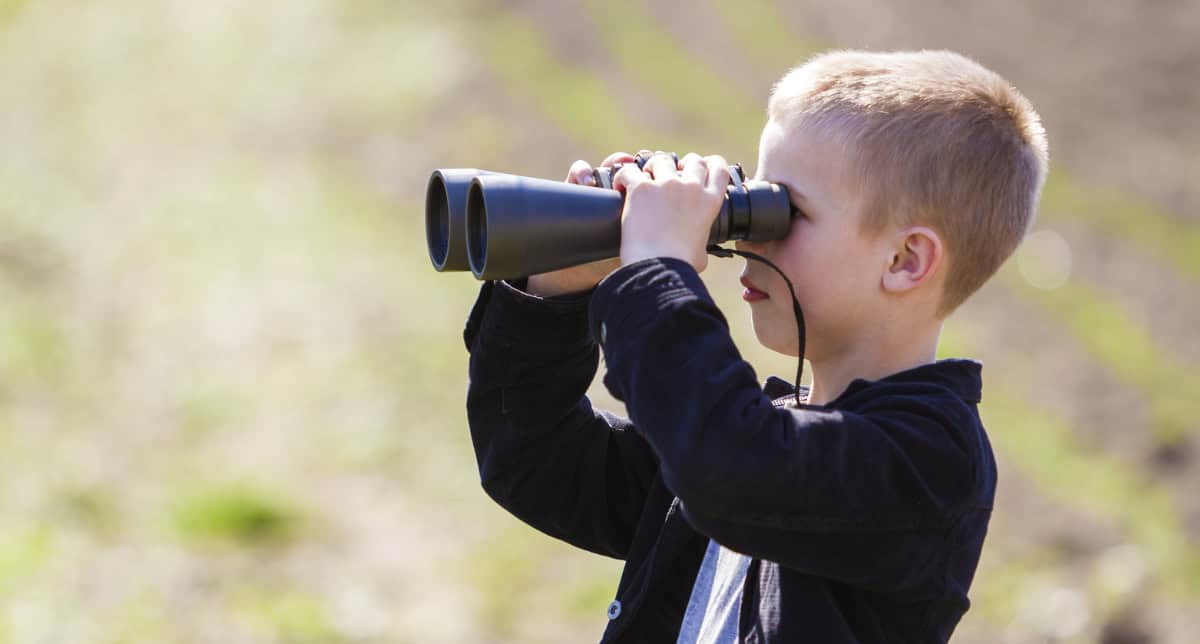
A bird watching society is launching a new program called Junior Birders, getting kids into birding early. They hand over a photo of a kid with binoculars, standing in a field, side profile, looking off into the distance. It’s their image. Nice shot. Clean light. But it’s not going to make anyone stop scrolling, and it’s definitely not the kind of thing people share.
The job: turn this one photo into something worth sharing. A website hero, an Instagram post, a LinkedIn header, a Pinterest pin. All built from one composite.
The concept comes together. What if a bird was sitting right on the front of the binoculars, looking back at the kid through the other end? The birdwatcher becomes the one being watched. It’s funny, it’s charming, and it tells a whole story in one frame.
First instinct is to describe the whole thing in a single text prompt and let the AI sort it out: kid in tall grass, surprised expression, bird perched on the binoculars, everything at once. No reference images, just words. Magnific’s Nano Banana Pro was doing the generating.
The AI had other plans. Instead of building from the client’s photo, it grabbed onto the description of “kid in tall grass” and basically invented its own kid. Completely different child, plaid shirt, wrong scene entirely. The client’s photo might as well not have been there.
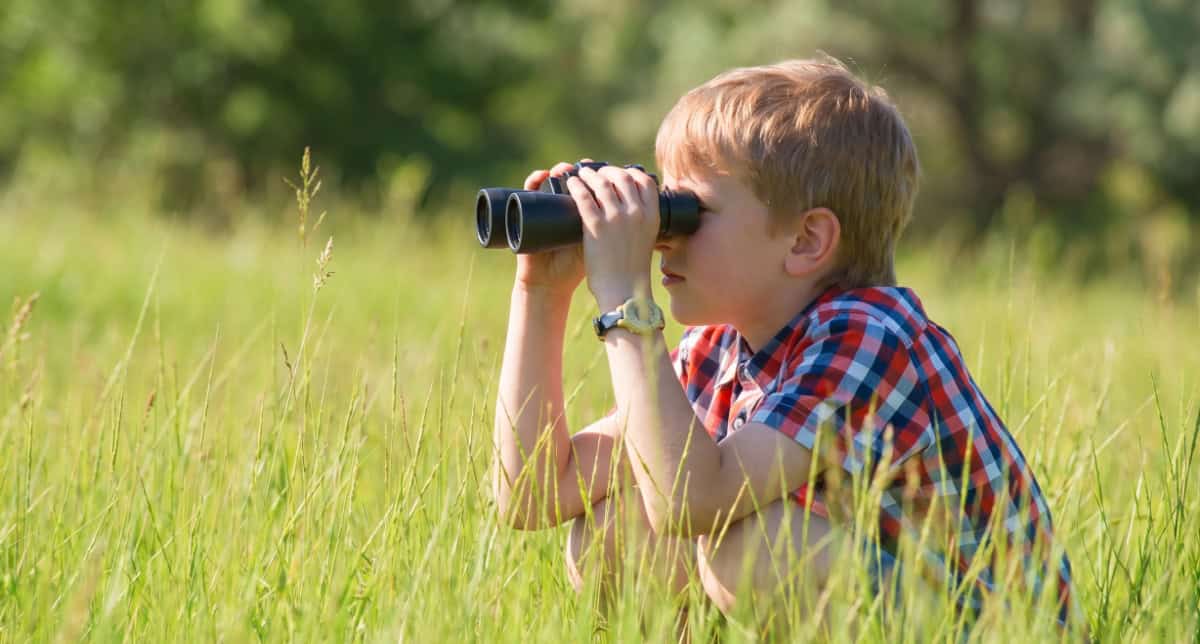
Tried again with adjusted wording. Same result, different angle. When you ask the AI to handle too many things at once, new environment, new expression, add an animal, maintain the base image, it starts making choices for you. And it’s not shy about ignoring the parts you actually care about.
This is one of those things you learn the hard way: text-only prompts and complex compositing don’t mix. The AI isn’t reading your mind. It’s reading your words, and when there are too many competing instructions, it picks the ones that are easiest to satisfy. Your carefully chosen base image? That’s the first thing it drops.
The fix was two things: break the build into separate passes, and start giving the AI reference images instead of relying on text alone.
Two passes. First, get the kid into the right environment. Second, add the expression and the bird.
For the background plate, the goal was straightforward: replace the bare field behind the kid with tall, wild grass. I pulled a licensed stock image of a similar-aged kid sitting in exactly the kind of grass I wanted and used it as a visual reference so the AI could see what I was after instead of guessing from a text description.
First attempt, and the AI did it again. Pulled the kid from the reference image instead of the client’s photo. At this point, the AI generated and reference kid had been cast in more outputs than the actual subject.
Simplified the prompt, made it more direct. Second attempt got the right kid this time, but the grass didn’t really integrate. You could still see the original field showing through, and the grass looked more like it was layered on top than growing around him. Better, but not something you’d put in front of a client.
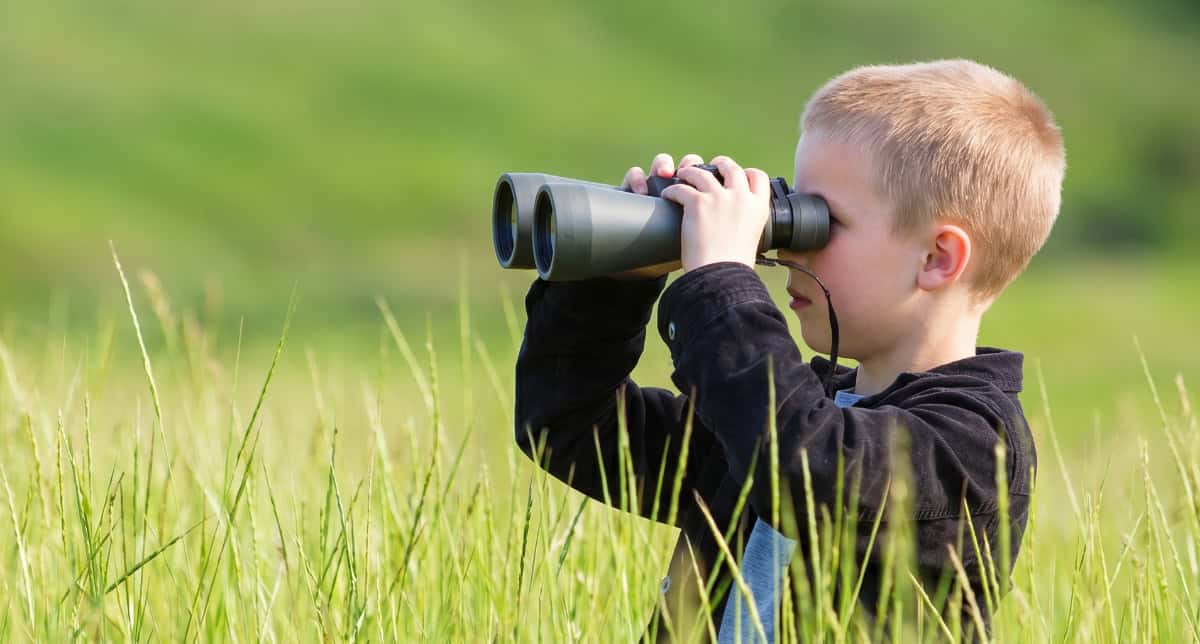
Third try, prompt adjusted again, and it finally worked. The client’s kid standing in tall, natural grass, original field completely gone. Three attempts for one background plate, and honestly, that’s a pretty normal ratio for this kind of work. Each failure told me something specific: the first said the references were competing with the base, the second said I wasn’t being precise enough about how the grass should interact with the figure.
With the background sorted, the real creative challenge showed up, and so did a physics problem.
The original concept was a bird perched on the front of the binoculars, looking back at the kid. On paper it’s perfect. But a bird that can physically grip a binocular barrel is a pretty big bird, and a big bird sitting on the end of binoculars just takes over the frame.
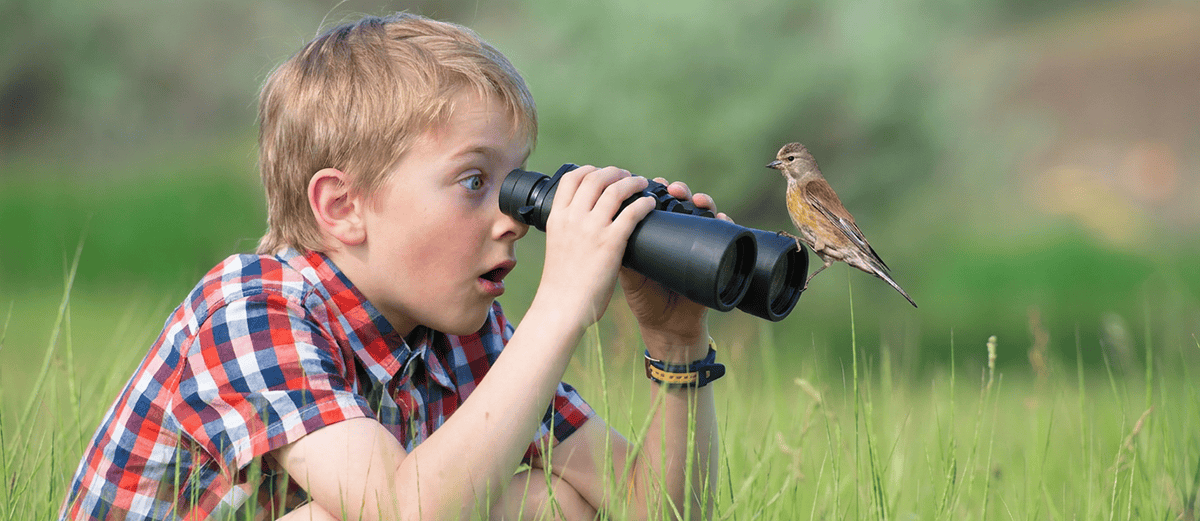
Rather than keep fighting the size, shrinking a perching bird until its anatomy stops making sense, the better answer was a different bird entirely. A hummingbird. Small enough to share the frame. And hummingbirds don’t perch on things, they hover. So instead of a bird sitting on the binoculars, you get one frozen in midair right in front of the lens, peering straight into it.
Turns out it’s funnier. The kid came to watch the birds. The bird came to watch the kid. Neither one saw this coming.
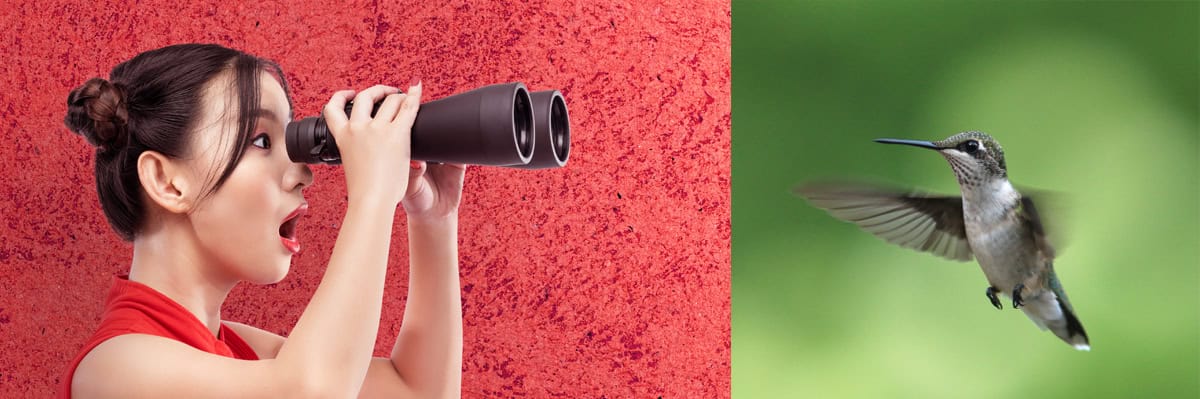
For this pass I used two reference images: a stock photo of a woman looking through binoculars with a wide-eyed, open-mouthed expression (to give the AI the surprised reaction I needed on the kid’s face), and a stock hummingbird in flight for the right scale and wing position.
The first generation landed close, but the hummingbird was still a bit large. Not as bad as the perching bird, but enough to feel off.
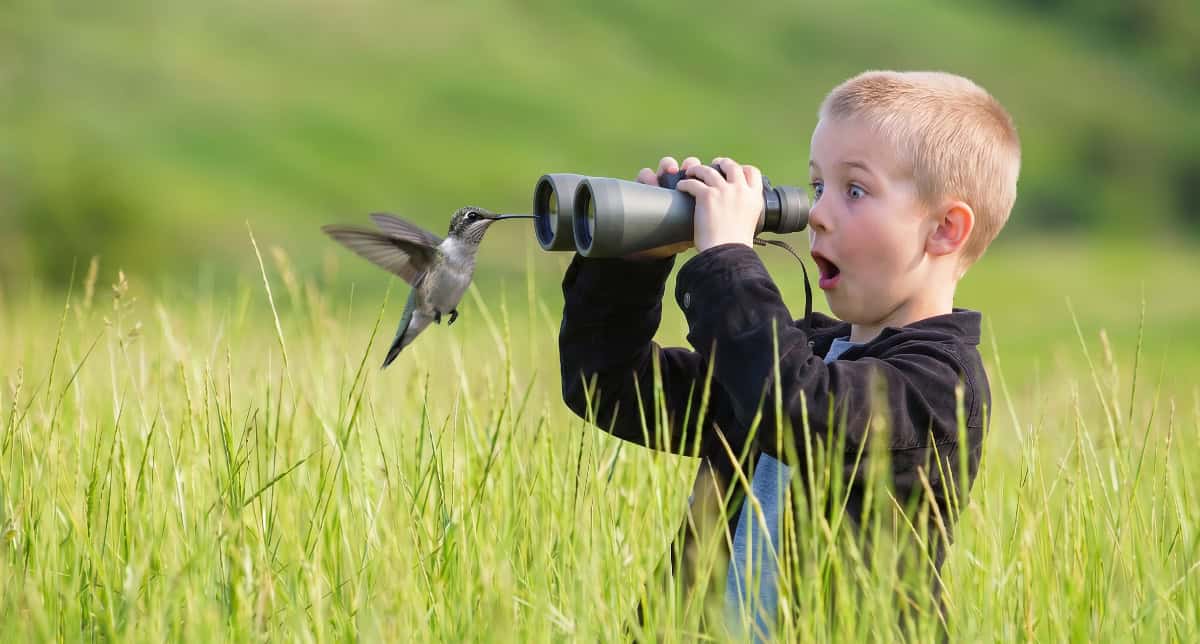
I used Magnific’s edit tool and asked it to reduce the bird by 20%. The specific number matters more than you’d think. Telling the AI to just “make it smaller” is a slot machine. You’ll get everything from barely noticeable to where-did-it-go. Giving it a specific percentage keeps the result in the range you actually want.
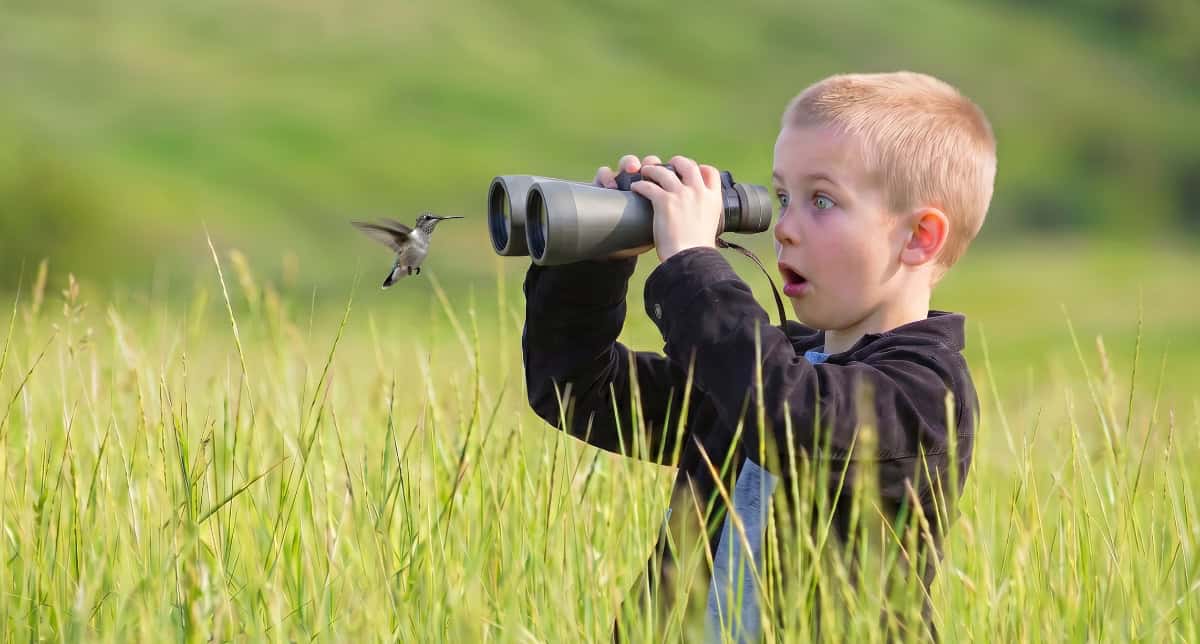
The composition was there. The concept was working. But the image had that look, the one where you can tell something’s off even before you figure out what. Skin too smooth, almost waxy. The hummingbird sitting flat against the background like a decal on a laptop. Looks fine as a thumbnail. Falls apart the second you see it at full size. AI giveth, and AI taketh away the pores.
Magnific’s editor has a skin enhancement tool that’s built to put back the detail AI strips out: pore texture, subtle color variation, the things that make skin look like skin instead of fondant. The recommended option is called “everything,” which processes the full image rather than just faces.
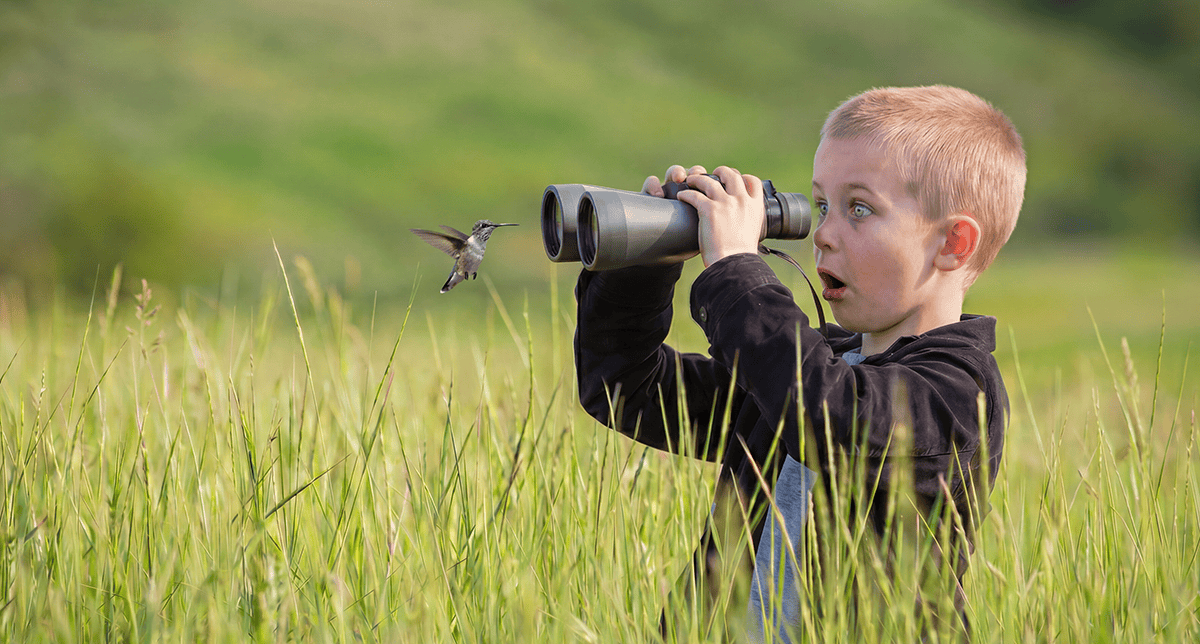
Gave it a try. The image improved, skin looked more natural, some of the background flatness softened up. But the hummingbird was still sitting on one visual plane, and parts of the scene felt like a collage rather than a photograph.
There’s another option in the same tool called “transform to real.” I had no idea what it was for. So I tried it. It was just one of those moments where you just click things and see what happens.
The difference was clear. More shadow depth across the whole image. The hummingbird’s wings and body picked up real dimension. The kid’s face had the kind of subtle light variation that separates a photograph from a render.

Having now used it, I looked up what “transform to real” actually does. It’s designed to take AI-generated or heavily stylized faces and push them toward realistic skin rendering. That’s not really what I was doing here, this was a full composite, not a face correction job. But it outperformed the tool that was designed for the broader task. Wouldn’t be the first time the “wrong” selection turned out to be the right one, and it probably won’t be the last. Worth trying both options and letting the image tell you which one worked.
The composite was done, but the framing was tight, kid and hummingbird filled the whole frame with no room for copy. The website hero and a LinkedIn header both need open space on the left for text, so the image had to extend.
Went to Photoshop first. Ran six versions of generative expand to push the grassy background wider. A couple were OK at first glance, but when you looked closely you could see repeating patterns in the grass and the hills behind it. Generative expand and organic textures have a long and complicated relationship. The patterns are subtle, but they’re the kind of thing that makes a designer squint, lean in, and say “nope,” because once you see them, they’re all you see.
Switched to Magnific’s resize tool and selected Nano Banana 2 as the model. The image was immediately flagged as a content violation, a popup appeared and I could no longer edit the image.
I think the flag was triggered by the child in the image. There was nothing inappropriate about the photo, a kid in a field with binoculars, but Nano Banana 2’s content filtering is aggressive. It flags images that are perfectly fine. This isn’t unique to this project, plenty of posts and help threads describe the same thing happening with normal photos with children, regardless of context or content.
If you’re working with images that include minors and using Nano Banana 2, be aware this can happen. There’s a form to report false flags, and after submitting it I was able to switch to a different model and keep going.
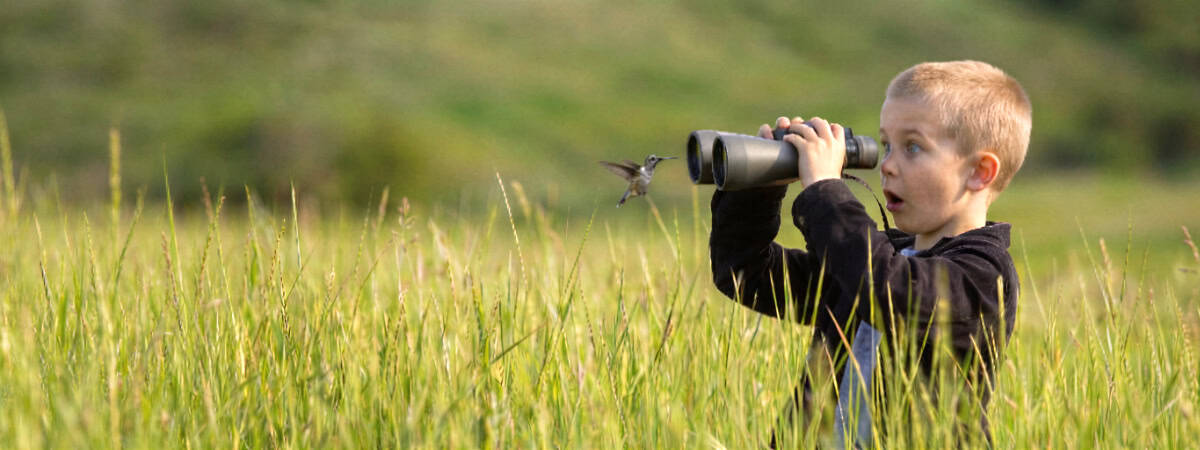
I chose Seedream 4.5 and ran the resize. The grass came out well, natural variation, no repeating patterns, good depth. But Seedream decided to reinterpret the hummingbird while it was at it. Proportions shifted, quality dropped. The grass was better, the bird was worse. AI’s version of “I fixed it for you.”
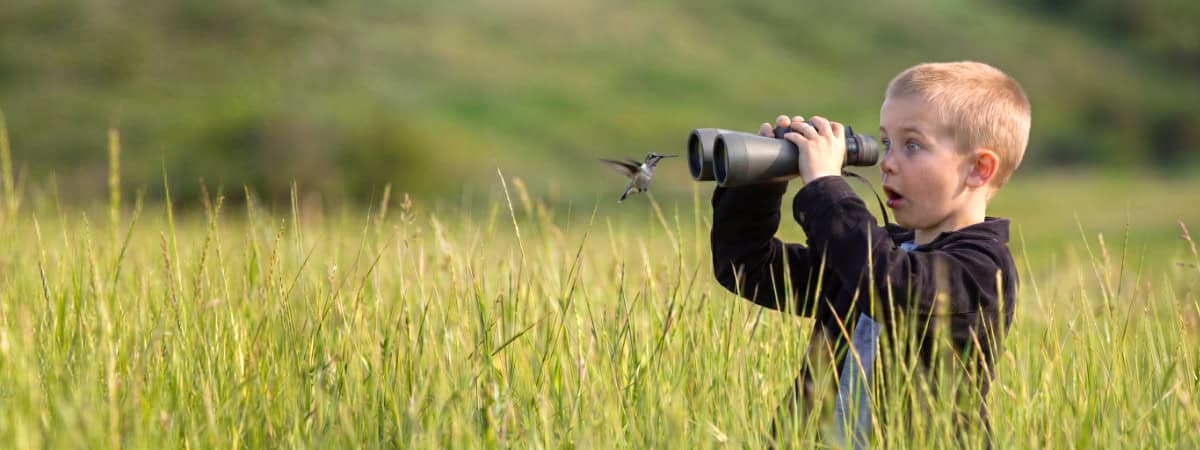
The fix for this was basic compositing. Brought the finished composite and the Seedream extension into Photoshop, layered the composite on top, resized it to match, added a mask, and brushed the edge to blend into the extended grass. The original kid and hummingbird stayed exactly as they were. The Seedream background filled the left side of the frame. Clean blend, no visible seam. Sometimes the simplest solution is the one that actually works.
One photo from a client. Three licensed stock references. Two AI models. A concept that had to evolve when the physics wouldn’t cooperate. A skin enhancer option that worked better when used for something it wasn’t intended for. A content filter that flagged a kid with binoculars. And a final image assembled from the best parts of two different outputs in Photoshop.
That’s what it actually looks like to build an image that doesn’t exist.
The client handed over one photo. What shipped was a campaign.